


How to abort macro's - Logitech Gaming
-
FragSalat -
May 27, 2019 at 1:51 PM -
81,492 times read -
13 Comments

-
Steps
- Open Logitech Gaming Software and navigate to the G-Key Modification
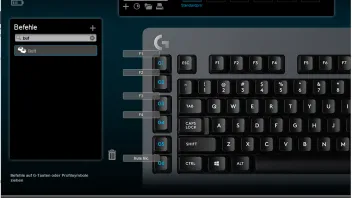
- For the macro's you want to be able to abort, remove the G-Key assignments by dragging the macro into the trash bin. In my case it is G5 with the Macro "Buff"
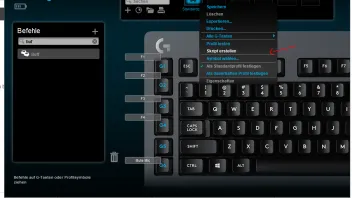
- Modify the script of your active profile (I bet in English the menu entry is called something like "Create Script"
- Insert the lua script
I'm already for a long time owner of logitech keyboards and mouses but to be honest I used their features quite rarely. From time to time i created macros for the G-Keys of my previous G15 but it never worked out so well. As my Logitech G15 keyboard were already over 10 years old and my Logitech G5 mouse had a break in the cable, my girlfriend were so nice to spend me a new Logitech G613 wireless keyboard and a Logitech G603 wireless Mouse to my birthday last year 
Today I finally had some things I wanted to put on the G-Keys. One key got an assignment to mute my microphone and the other should get a macro to buff my character in the old MMORPG I started playing again  This worked very nice but there was a problem! Once the macro started, I couldn't abort it and the enemy had enough time to kick my ass^^ After some Googling and some short playing around I got my solution and that's what I want to share with you now (finally eh :D)
To be able to abort the macro you have to modify the lua script of your current profile to start or stop the macro programmatically. Don't be afraid if you have no idea of programming, it's not that tricky this time
Steps
1. Open Logitech Gaming Software and navigate to the G-Key Modification
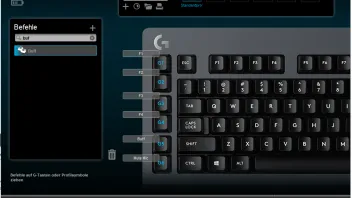
2. For the macro's you want to be able to abort, remove the G-Key assignments by dragging the macro into the trash bin. In my case it is G5 with the Macro "Buff"
3. Modify the script of your active profile (I bet in English the menu entry is called something like "Create Script"
4. Insert the lua script
Copy the following script and replace the content of the default script. If you have an own script you have to merge the code manually
Once the script is in the editor you have to add the key-macro assignment at line 7. For each assignment create a like like macros[5] = "Buff" which means G5 holds the macro "Buff".
When you have defined the assignment save the script and try it by pressing your G-Keys. The log below the editor should tell you what the script is doing
Code
local macros = {}

---------------------------------------------------------------
-- Edit this macro list like this
-- macro["G-KEY the macro should be assigned"] = "Macro name"
---------------------------------------------------------------
macros[5] = "Buff"


---------------------------------------------------------------
-- No need to touch here
---------------------------------------------------------------
local macroRunning = nil

function handleGKey(key)
    if (macros[key] ~= nil) then
        if (macroRunning == macros[key]) then
            OutputLogMessage("Stopping Macro: %s\n", macros[key]);
            macroRunning = nil
            AbortMacro()
        elseif (macroRunning == nil) then
            OutputLogMessage("Running Macro: %s\n", macros[key]);
            macroRunning = macros[key]
            PlayMacro(macros[key])
        else
            OutputLogMessage("Another macro is running: %s\n", macroRunning);
        end
    end
end

function OnEvent(event, arg)
    if (event == "G_PRESSED") then
        handleGKey(arg)
    end
endI hope that helps some people and please feel free to give me feedback on the blog post or the script itself
Comments 13